If you’re reading this article, you may be wondering how to check your grades. To do so, you will need to access Infinite Campus, a student information system utilized by many schools and districts to manage student data, including grades, attendance, and schedules. This system provides students and parents with access to important information regarding their academic progress and the ability to communicate with teachers.
Infinite Campus: https://sis.ects.org/campus/ects.jsp
How to Log In
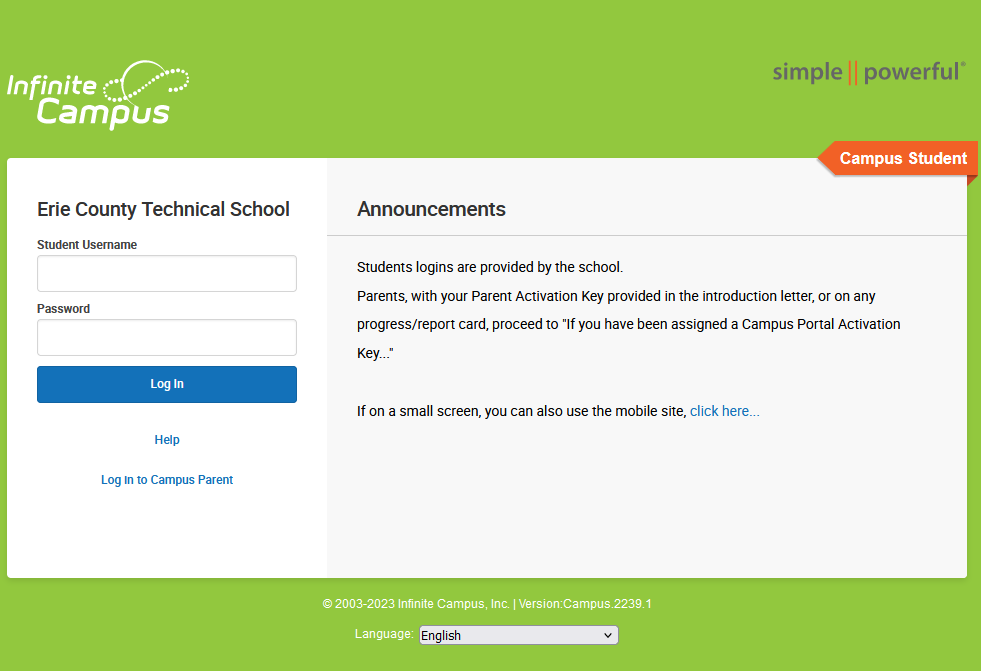
To log in, use your ECTS login, which you typically use to access your computer.
- Your username should begin with “CMP” (which stands for Computer Program), followed by an underscore (_), the first two letters of your first name, and then your full last name. For example, if your name is Jacob Hall (which is me), your username should be “CMP_JaHall”.
- Your password should begin with “Ects”, followed by the numbers for your month and day of birth. Always use two digits for the month and day. For example, if you were born on December 3, 2005, your password should be “Ects1203”.
Today
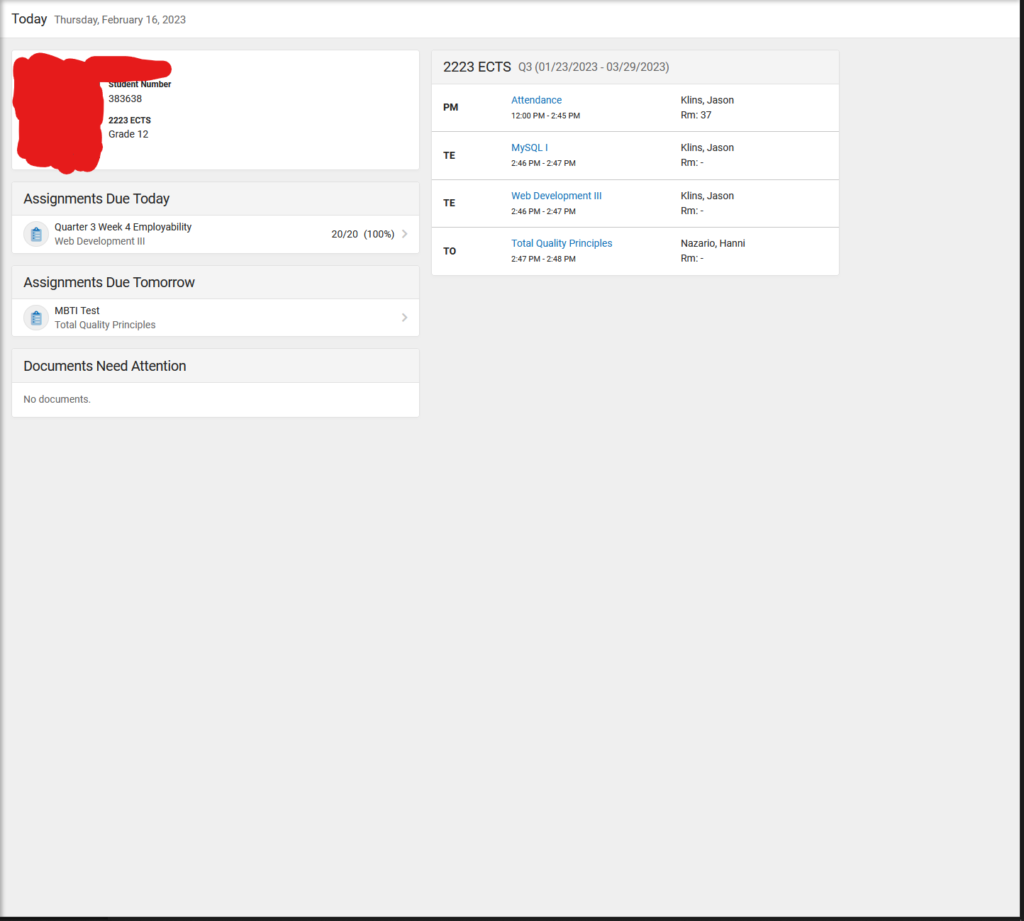
Once you’re logged in, you will arrive at the “Today” page, which displays your picture, name, student number, and grade. This page includes sections such as “Assignments Due Today”, “Assignments Due Tomorrow”, “Documents Need Attention”, and your current subjects.
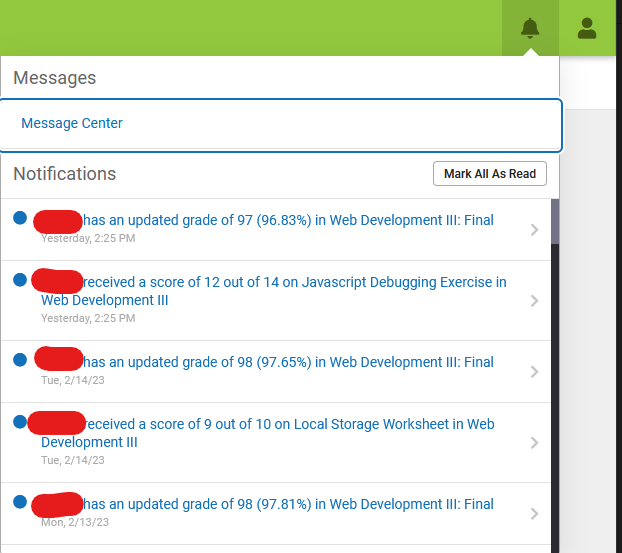
In the top right corner, you’ll find a bell-shaped icon that represents your latest messages and notifications from Mr. Klins and the school. The notifications section also displays updates to your current grade based on your completed assignments.
On the left sidebar, there are 11 items that you can access. Here are some of the more important ones you should mainly focus on. Left Sidebar
Calendar
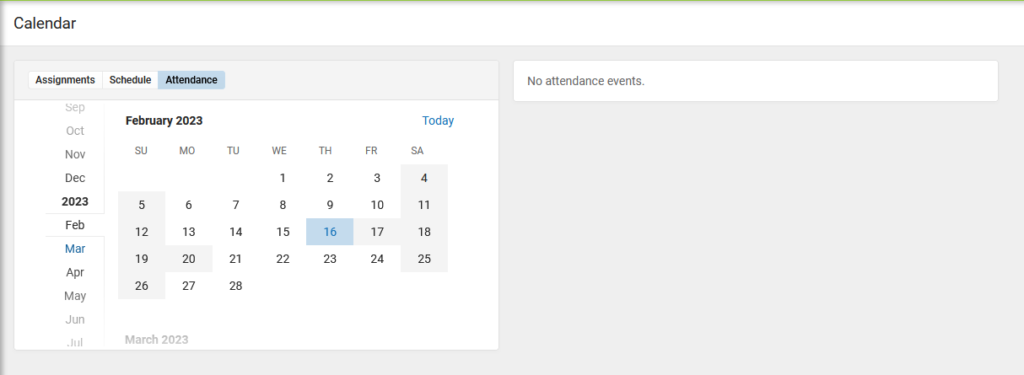
In this section, there are three different tabs on the calendar which include “Assignments”, “Schedule”, “Attendance”.
- Assignments: By clicking on the calendar, you can view the upcoming or graded assignments for certain days.
- Schedule: This tab displays the classes you are taking on a particular day.
- Attendance: By clicking on a day, this tab displays your attendance status, such as “Excused Absence,” “Unexcused Absence,” “Excused Tardy,” “Unexcused Tardy,” and so on.
Assignments
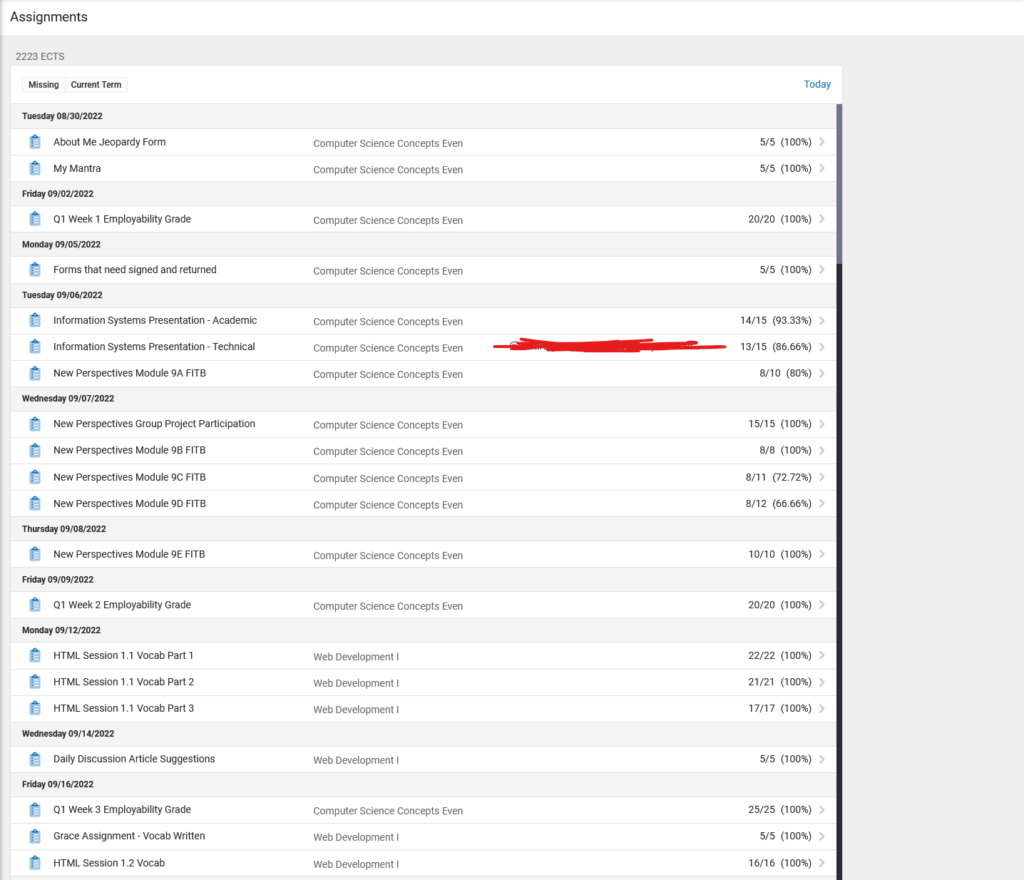
This section has two different tabs for assignments, which are “Missing” and “Current Term” and all assignments are organized by days.
While on this page, you’ll be able to view the name of the assignment, the subject, and the grade of that assignment.
- The “Missing” tab displays all assignments that are currently missing.
- The “Current Term” tab shows all assignments in your current term.
Grades
This section defaults to displaying the current academic quarter. Here, you can view your Cumulative Grade Point Average (GPA) and the list of classes or subjects that you are currently enrolled in.
Important note: Grades for each course are rolled up into a single grade. Each course has its own weight.
Eg. If you had Flowcharting and Pseudocode (30 hrs) and Visual Basic II (90 hrs), you would calculate your final grade as follows:
{Flowcharting Grade} * (30/120) + {Visual Basic II Grade} * (90/120) = Final Grade
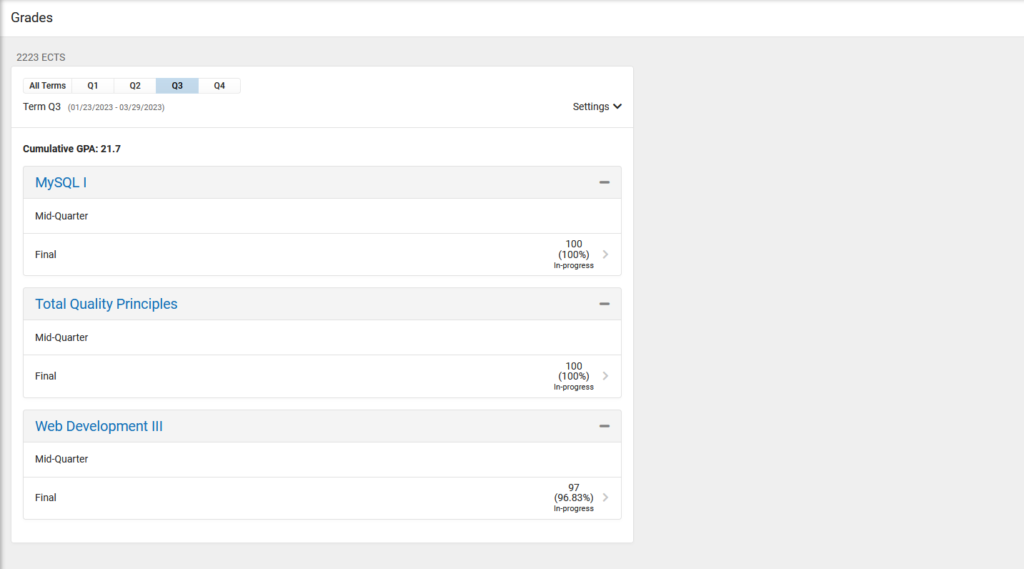
Furthermore, there are two separate categories that display your grades for “Mid-Quarter” and “Final” evaluations.
You can view which assignments have been recently graded and click on them for further details, including comments from Mr. Klins on mistakes made or points lost
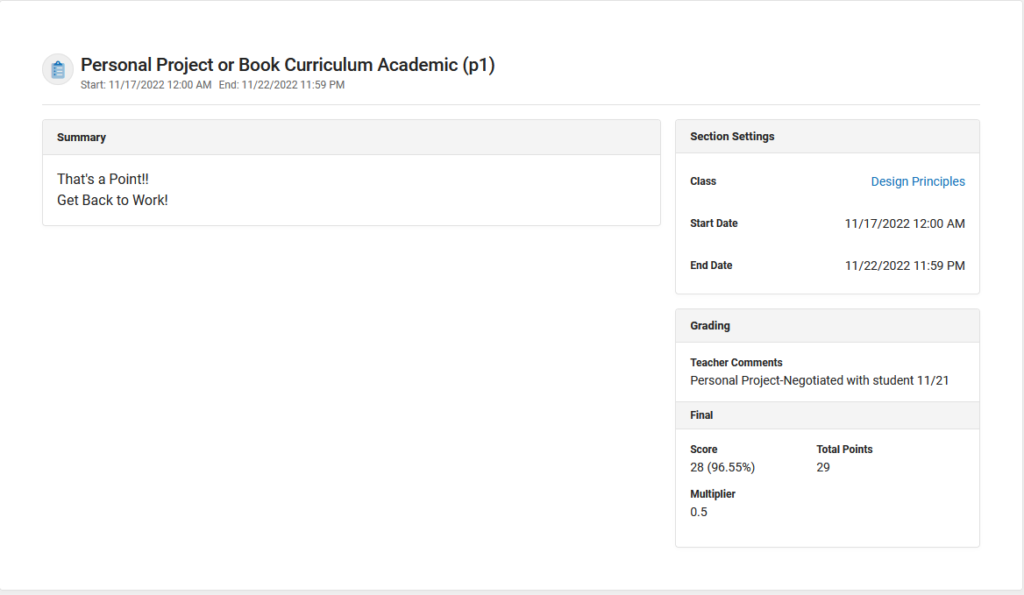
Grade Book Updates
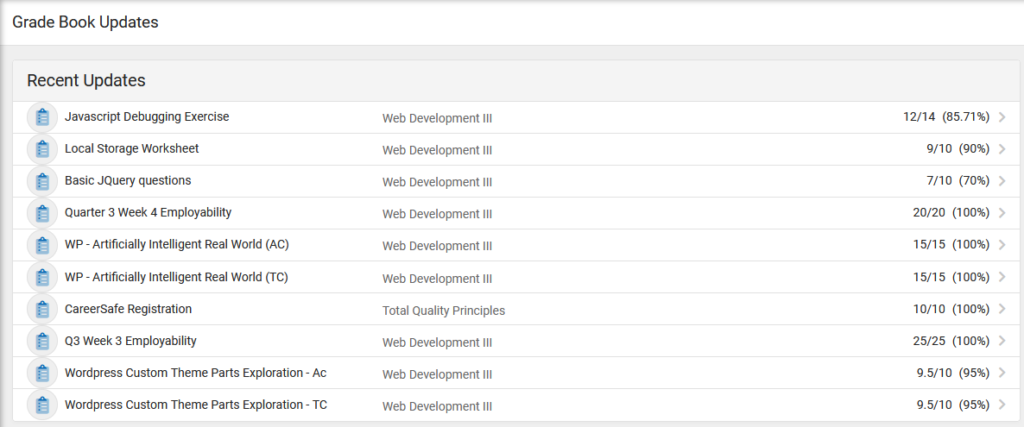
This section shows recent updates to your grades. You can view which assignments have been recently graded and click on them for further details, including comments from Mr. Klins on mistakes made or points lost.
Documents
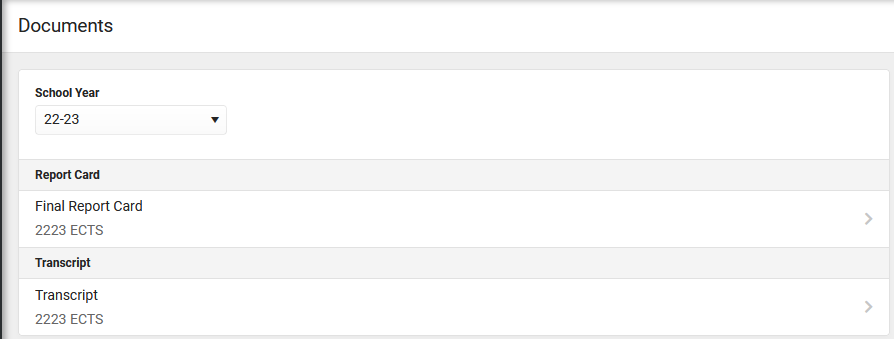
This section allows you to access up-to-date versions of your “Final Report Card” and “Transcript” documents.