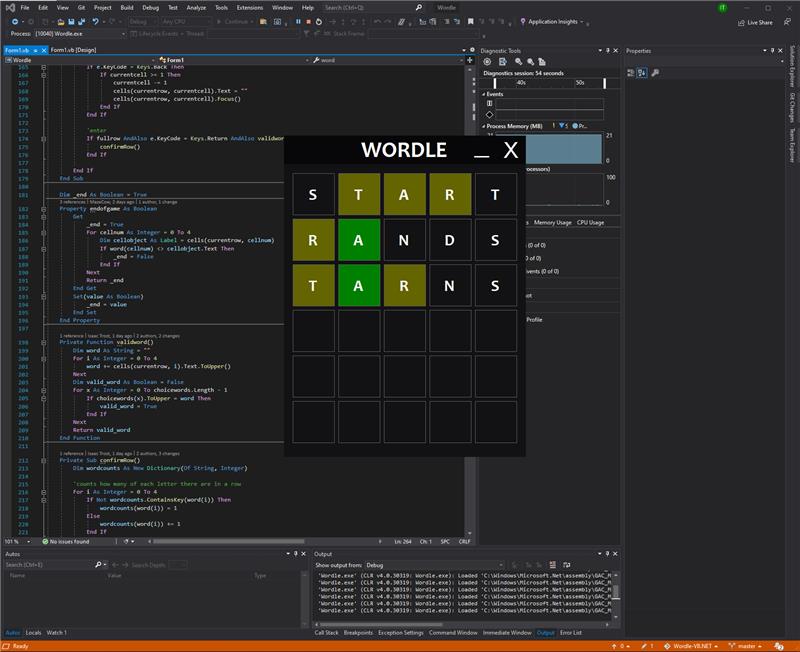
Recommended software and skills: VB.Net, Visual Basic, Visual Studio
What is Wordle?
Wordle is a popular online guessing game that challenges players to guess a five-letter word in a limited number of attempts. The game presents players with a blank row of five boxes that represent each letter of the word to be guessed. Players enter a five-letter word as their first guess, and the game then indicates which letters are correct and in the correct position (represented by a green square) and which letters are correct but in the wrong position (represented by a yellow square). Players have six attempts to correctly guess the word, with the letters in each guess informing subsequent attempts. The game has gained a large following due to its simple yet engaging gameplay.
Project Purpose
Personal challenge
Creating a Wordle game program can be a fun coding challenge for developers who enjoy creating games and puzzles. It can also be a way to test and improve their programming skills and knowledge.
Education
Building a Wordle game clone can be used as a learning exercise to teach programming concepts, such as object-oriented programming, algorithm design, and user interface design.
How I Approached This Project
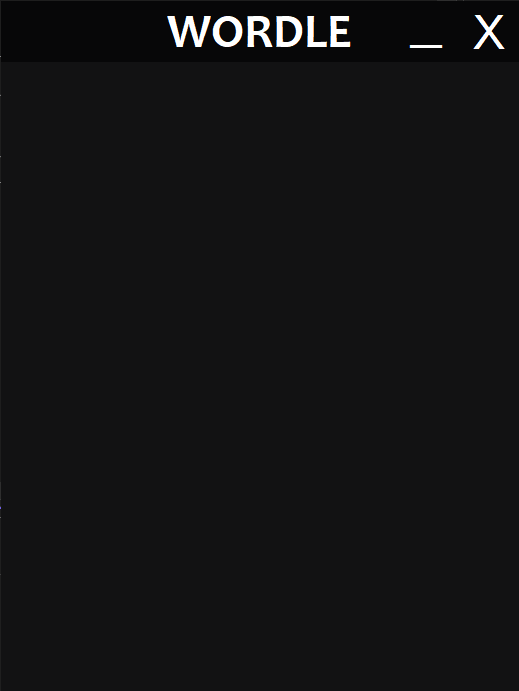
Before I did anything, I needed to know how the Wordle game actually functioned. I was planning to play a bunch of games of Wordle and just sort of figure it out, but the official wordle site only allows one game per day. So, to get around this I went to a website called wordplay.com. This is just a wordle clone that lets the user play however many games they’d like, without the daily limit. After I got the gist of how the game works, I designed the basic user interface of the program in the Visual Studio forms designer tool (shown on the right). I wanted the program’s user interface to look clean, so I used a custom title bar, minimize, and exit button. I achieved this by setting the FormBorderStyle property of the Form to NONE, and then adding whatever I wanted to the top of the form until it looked cool. The user still needed to be able to drag the window around with the title bar, so I used some code I found on stack overflow to add that functionality. Here’s the code I used:
Public Const WM_NCLBUTTONDOWN As Integer = &HA1
Public Const HT_CAPTION As Integer = &H2

<DllImportAttribute("user32.dll")>
Public Shared Function SendMessage(ByVal hWnd As IntPtr, ByVal Msg As Integer, ByVal wParam As Integer, ByVal lParam As Integer) As Integer
End Function

<DllImportAttribute("user32.dll")>
Public Shared Function ReleaseCapture() As Boolean
End Function

'IMPORTANT! Replace the CustomTitle and Label1 objects with whatever objects you used in your custom title bar (this does not include the exit or minimize buttons).
Private Sub CustomTitle_MouseDown(ByVal sender As Object, ByVal e As System.Windows.Forms.MouseEventArgs) Handles CustomTitle.MouseDown, Label1.MouseDown
    If e.Button = Windows.Forms.MouseButtons.Left Then
        ReleaseCapture()
        SendMessage(Handle, WM_NCLBUTTONDOWN, HT_CAPTION, 0)
    End If
End Sub
The first thing I needed to do after finishing designing the interface was to add a list of official Wordle words, so I searched around on the internet and discovered that Wordle actually uses two separate word lists. One list for the words that can be chosen by the program, and one list for the words that can be entered by the user. After I found these online, I imported them as resources into my project. I then created an empty global string variable called word and placed an empty FlowLayoutPanel in big the blank space of the main Form. I made sure the FlowLayoutPanel could fit a 5×6 grid of Labels for when they’re generated later. Then, I made an empty 5×6 two-dimensional array called cells and created a sub procedure that runs when the form loads; it generates thirty blank Labels and fills the cells array with those labels and places them inside the FlowLayoutPanel. Then, I defined a new string variable that holds all the valid characters the character can type (basically just the capital and lowercase alphabet). After that, I created an event handler on the main Form that handles the KeyDown event*. Inside that event handler, I wrote some code that checks if the key that was pressed is an allowed character. If it is, change the text of the first empty Label to the letter the user pressed. If the row that the user was typing in gets filled up, the program won’t do anything when a key is pressed (unless the key pressed is the enter key). If the key pressed is the enter key, the program will check if all the letters in the row spell a valid word. If the word is valid, the program checks if each letter in the row is in the original word. If a letter is in the original word but not in the same spot, the background color of the Label changes to yellow. If the letter is in the word and in the same spot, the background color changes to green. If the user hits the backspace key, delete the last Label’s text and move back to it. When the user wins (all the letters match the original word) or the user runs out of rows to type on, the program should open a popup that tells them if they’ve won or lost, what the word was, and asks the user if they’d like to play again. If the user selects no, close the program. If the user selects yes, reset all variables, labels, arrays, FlowLayoutPanels, etc. and regenerate the Labels. The game should seamlessly restart.
*Make sure to enable the KeyPreview property on the main form in order for this to work!
Challenges That I Faced
Using Custom Background Colors
I really wanted to use custom background and foreground colors, but I didn’t know how. It took me a while to figure out, but all you have to do is use the following code:
exampleLabel.BackColor = Color.FromArgb(255, 100, 0, 0)The first parameter is the alpha and the next three parameters are the r, g, b color values.
Using a Custom Minimize Button
Since I used a custom minimize button, I had to make the minimize function by myself. It took a little searching to figure out how to do this, but here’s the code:
Me.WindowState = FormWindowState.Minimized
Generating Controls with Custom Size and Margin
Took forever to figure this out, here’s the code:
ExampleLabel.Size = New Size(90, 90)
ExampleLabel.Margin = New Padding(4, 4, 4, 4)
Summary
In conclusion, VB.Net Wordle is a great personal project. It can help strengthen developers various skills and be a great learning experience. Especially since this project was super complicated!


Nice work on this one. Now add a keyboard with keys highlighted 😛