Contents
What Is Github?
What Is Git?
How To Install GitHub Desktop?
How To Create a New Repository
Using GitHub Desktop with VSCode
How To Get a Repository When It Isn’t On Your Computer
What Is GitHub?
So you’ve clicked on this article wondering what GitHub is -or heard of it before- and what it is used for and what is so important about this tool. Well, Github is a code hosting platform and collaboration tool designed to keep your code in a safe place. Did you write a line of code that you didn’t mean to but don’t know what line it was? Well,there is a tool to help you with cthe hanges that you made. Did you make that big mistake of destroying all of your source code and don’t remember what that code was? Well with githubGitHub is a rollback feature to get that source code back for you!
For this article, we will be using GitHub Desktop. This is mainly to do with what the Desktop version is a lot easier to use and generally has more features to use. So let’s get into it.
What is Git?
GitHub utilizes something called Git for it to function. According to Wikipedia – “Git is a distributed version control system that tracks changes in any set of computer files, usually used for coordinating work among programmers collaboratively developing source code during software development. Its goals include speed, data integrity, and support for distributed, non-linear workflows.”
How To Install GitHub Desktop
So the first step for learning GitHub is to install the Desktop version on your computer. To do this you must:
- Go to https://desktop.github.com/. You should then see something like the image shown below on your screen.
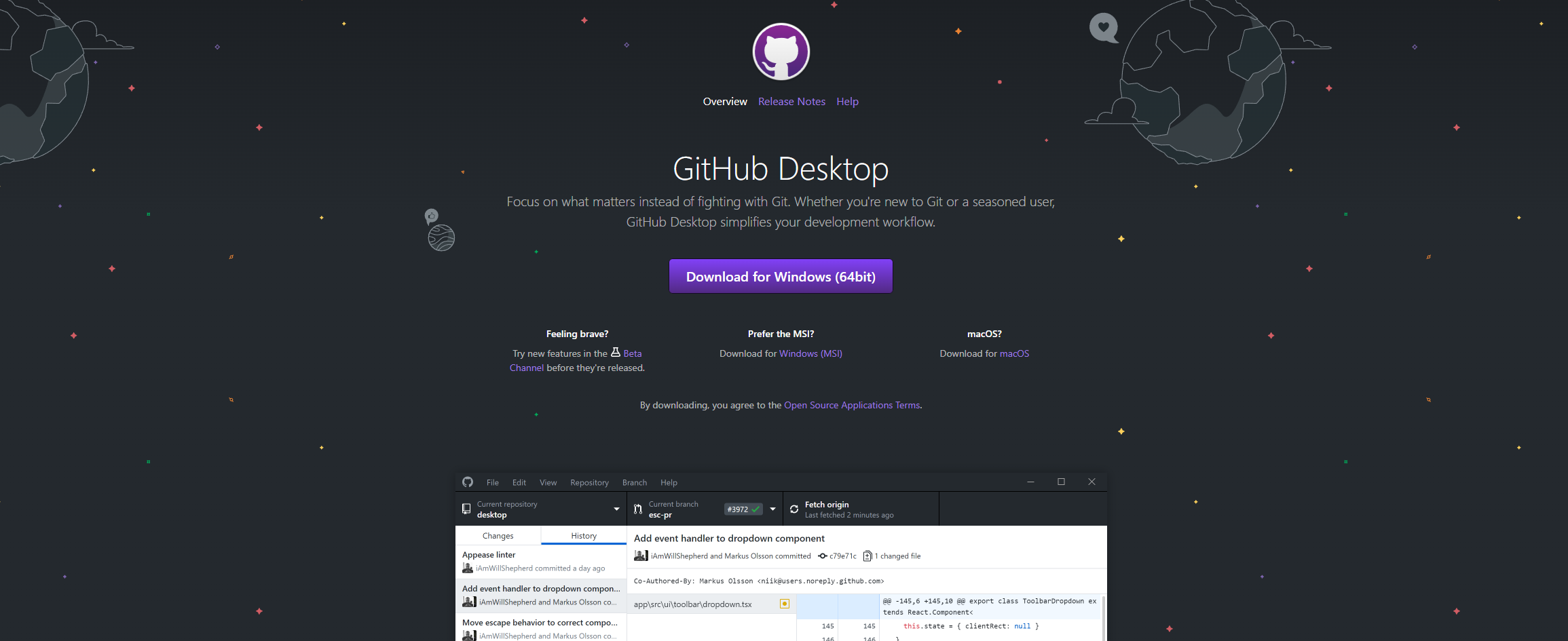
- Go ahead and click on the download for Windows (64bit) button to download the EXE file of GitHub Desktop.
- When it has finished installing it will ask you to Sign in to GitHub.com or to Sign in to GitHub Enterprise.
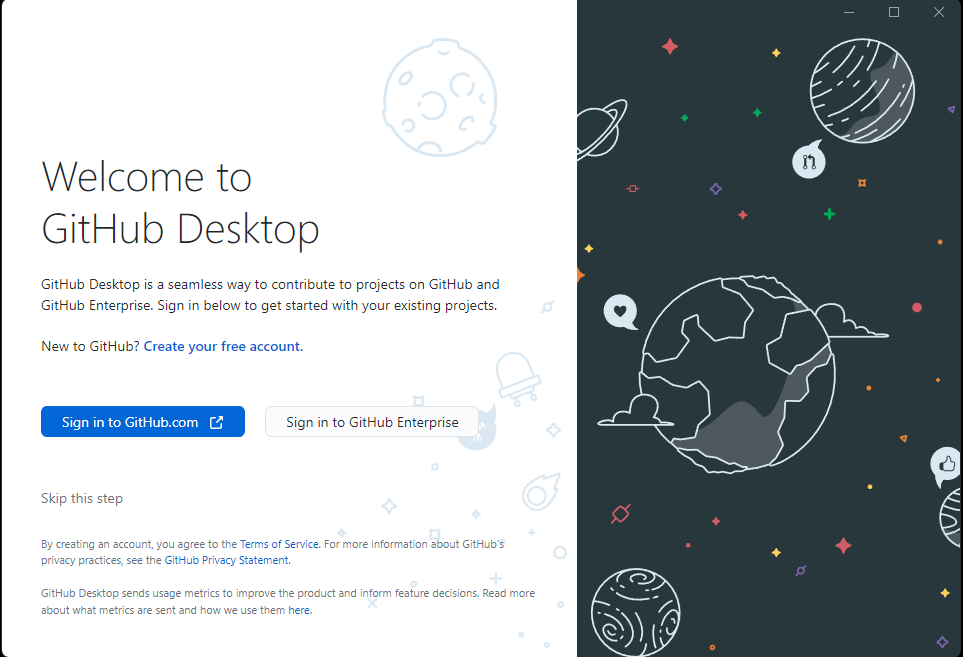
- Click on the Sign in to GitHub.com button and fill out the information needed on that tab.
Congratulations! You now have GitHub Desktop Setup and ready to go.
How To Create A New Repository(Also Known As Project)
Just installing GitHub isn’t going to exactly do anything without you knowing what to do afterward. This is where you’d need to create a project for the installation to actually take your code. So here’s how to do it:
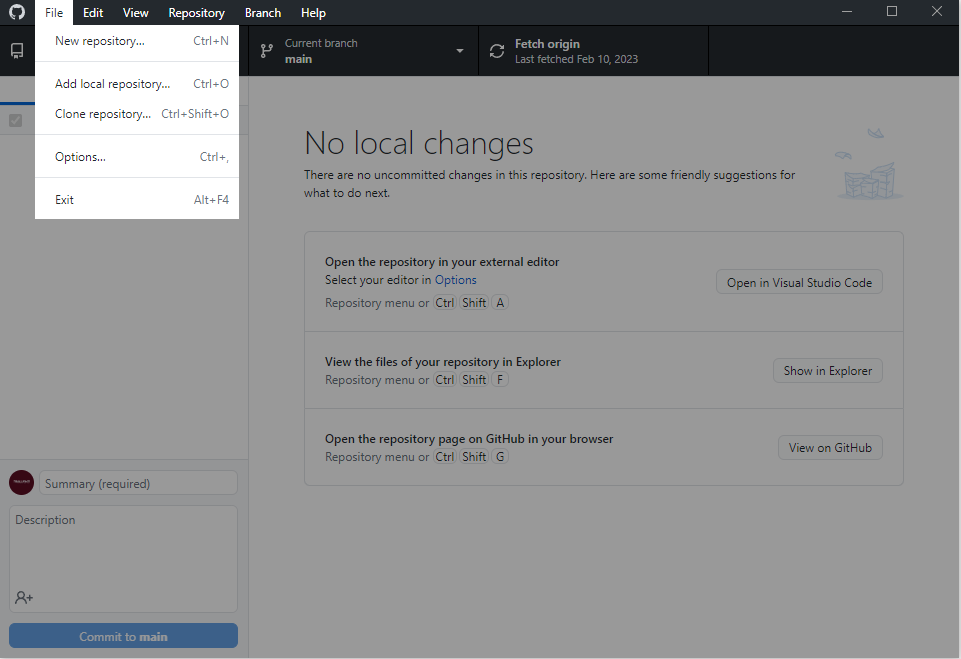
- Click on the File dropdown and select the New repository… button.
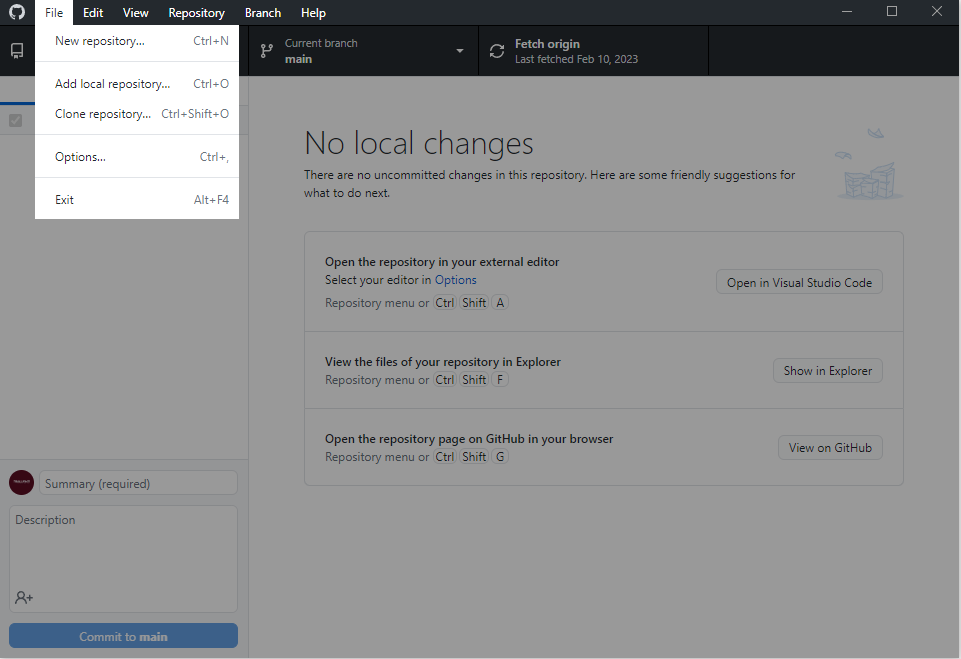
- Fill out all the information as needed. NOTE: If you plan on making a repository public I’d recommend ticking the Initialize this repository with a README box.
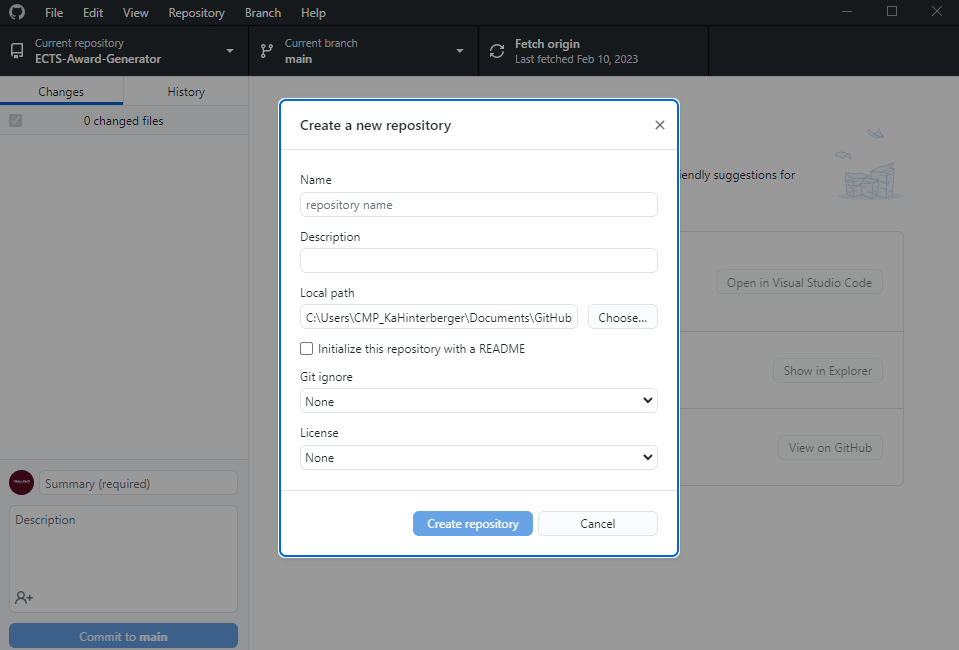
- After you fill out the information needed press the Create Repository.
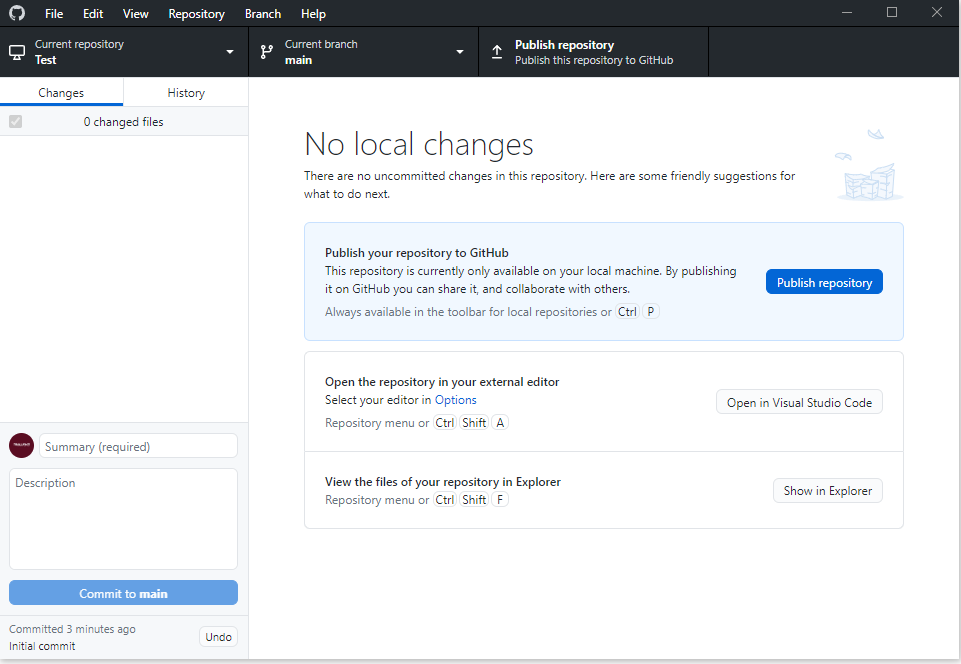
- Congratulations you just made a repository!
Using GitHub Desktop with VSCode
So far we have created the Repository where our code will be stored, but how do we actually put code in the project? Well, it’s actually quite simple when you get used to it.
- The first thing you want to bring your eyes to is the section called Open the repository in your external editor and select the Open in Visual Studio Code button. If it doesn’t say that and instead says something different press Options and select the right external editor.
- After you have opened VSCode we will be writing some random code to show you what it looks like in GitHub. As you can see in the picture below any code you write in VSCode and press CTRL+S it will appear in GitHub Desktop.
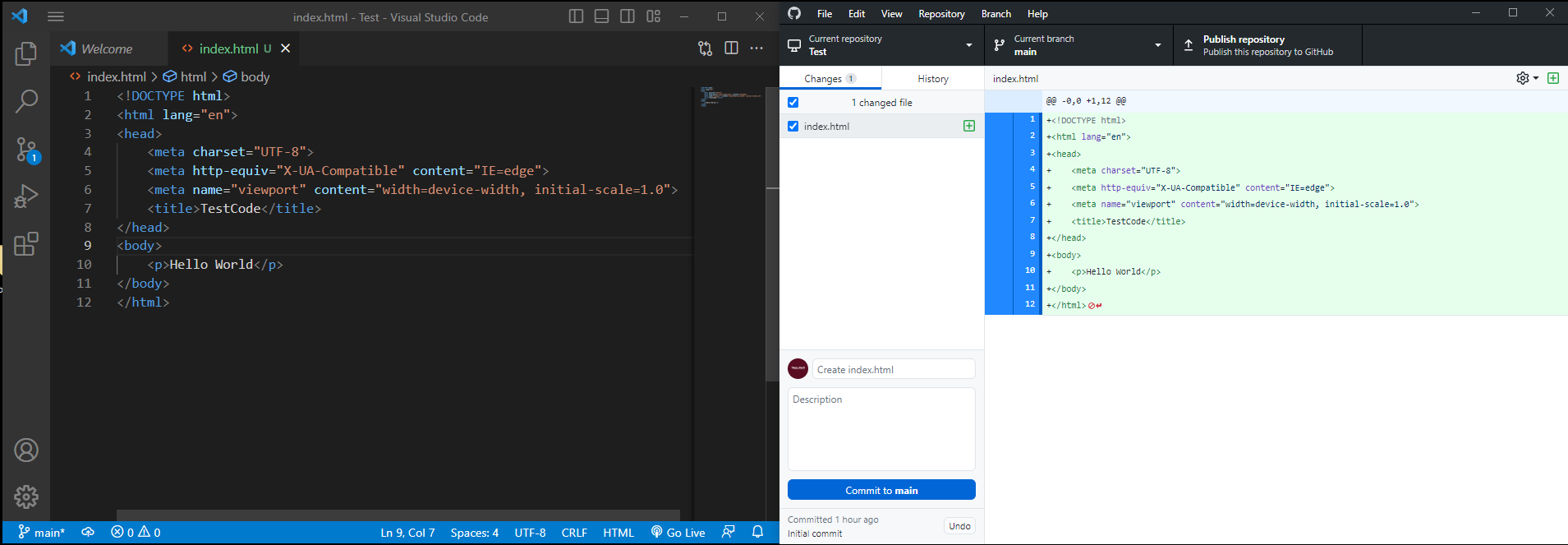
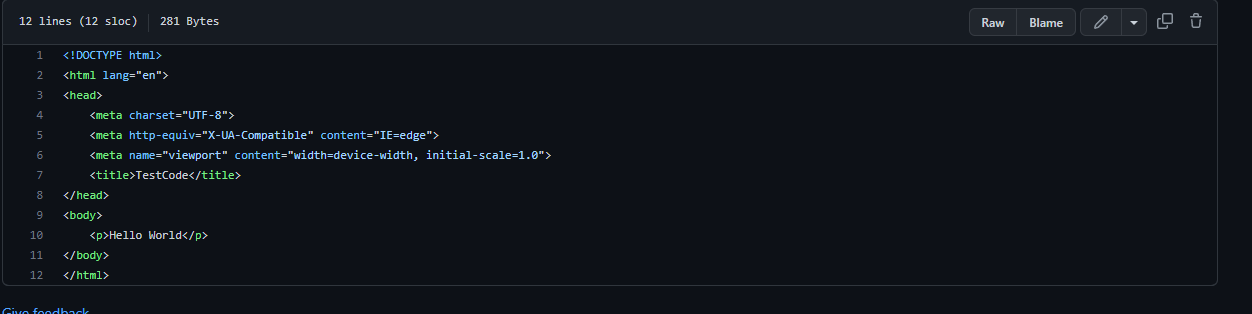
- Now even though the code that you’ve written shows up there doesn’t mean that it is saved anywhere else but your computer still. So go ahead and press Commit to main and then press Publish Repository. Now if you go to the GitHub Website while being signed into your account you can see the code you have just written.
How To Get a Repository When It Isn’t On Your Computer
What if you have a repository and it’s already published and on the website itself, but how do you get it on your computer so that you can edit said code? This is also quite simple:
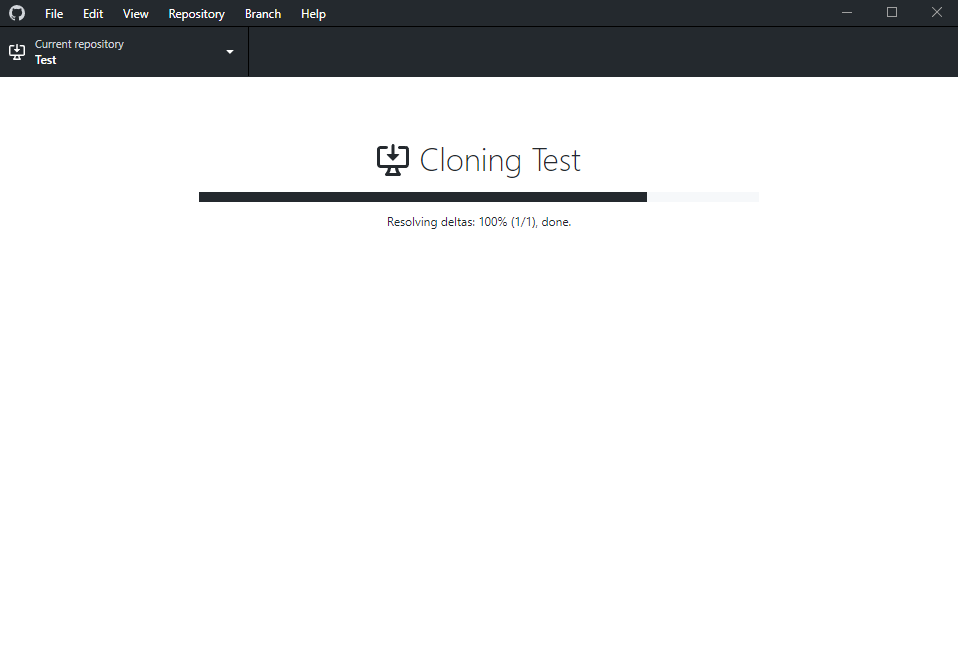
What you want to do is select the File dropdown and select the Clone Repository button. Afterward, all you need to do is select the project you want to put onto your computer and open it after it has finished cloning. NOTE: If you change any code on a different computer you will then have to pull the commit that that computer made in order to use that computer’s code.