
BRAINSTORMING
Before starting this project, I knew the app would have to be something really simple so I could learn the basics of Android app development and Java. The Klins told me to start with something simple like a button, so I did just that. I had the super epic idea of creating an app that replicates those big red novelty NO buttons.
PREPARATION
To begin, I installed android studio and the Java runtime. I wasn’t sure if I needed the Java runtime or not so I just installed it anyways because its better to be safe than sorry 👍.
EXECUTION
To begin creating my app, I created a new Empty Views Activity in Android Studio (must be an empty views activity and NOT an empty activity, otherwise you wont be able to use java for whatever reason). Then I got to work. I had to do a little research to figure out what the heck I was doing, but I soon realized that android studio was similar to the VB.NET in the sense that it has its own window designer.
Anyways, I placed a picture button on the screen (“view”) in Android Studio and changed its default image to a pixel art button I created (stole from google images). I did this by importing the image into the .\res\drawable\src directory of the project and setting the srcCompat attribute of the button (using Image.setImageResource) to the path of the image, which was @drawable/btn_up. I also created an image where the button is pressed down for later 🙂.
I then added an event listener to the button that listened for a click event. Inside of the event listener, I added some code that changed the image of the button to the pressed down image. At this point, this is what the app looks like:
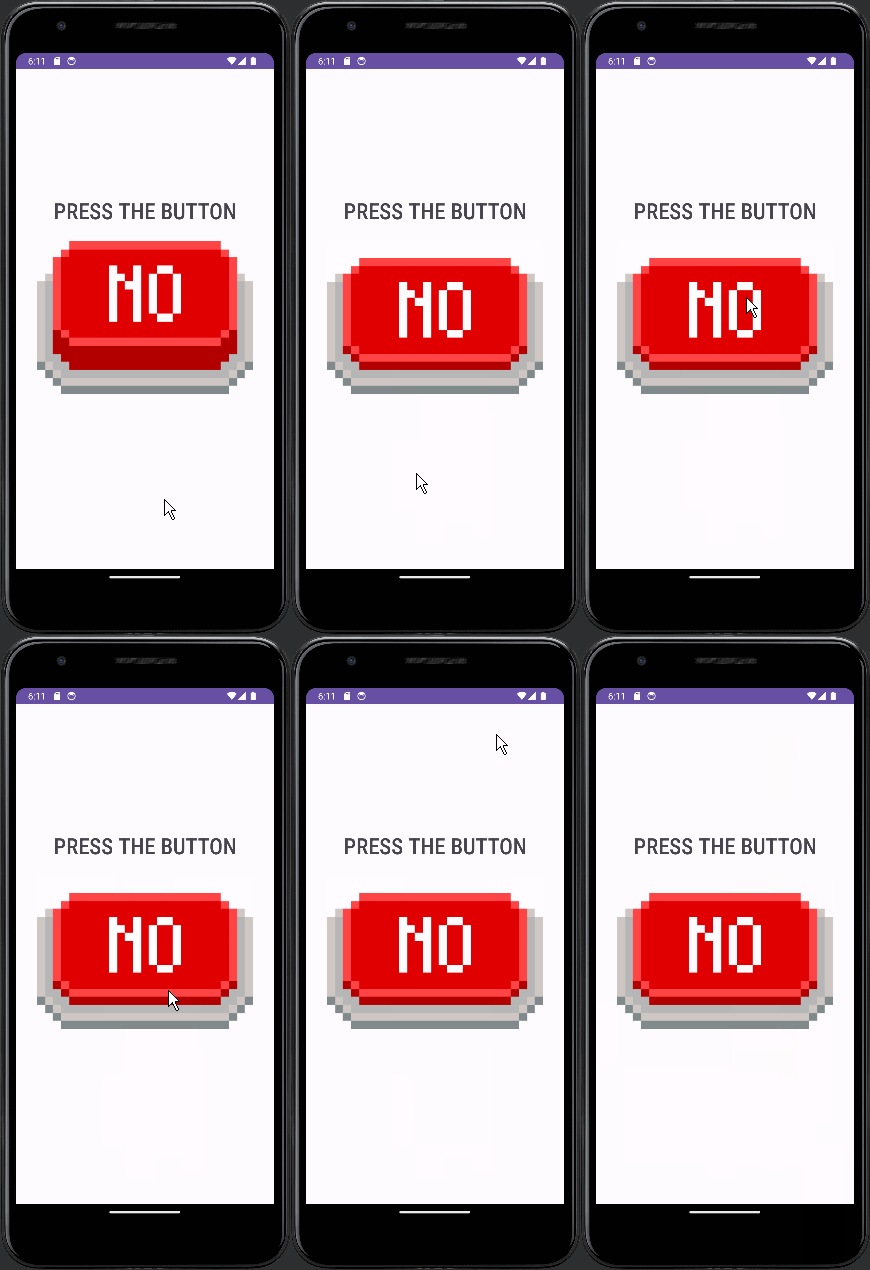
The button could now be pressed down, however, there were some big issues. The button’s click was only registered after the user touches and lifts their finger off of the button. This means the image of the button doesn’t change to the pressed down state until after the button had already been pressed, which isn’t how a button realistically functions.
I realized in order to fix this issue, I would need new event listeners to handle when the user first touches the button, and when the user lifts their finger off of the button. This way, I could make the image change to the pressed down version right as the user touches the button, and change back to the normal button image when the user stops pressing the button.
I quickly realized that these event listeners were very hard to implement and ChatGPT didn’t really help either ☹️. I never got the event listeners working but instead found a better and probably more efficient way to change the image of the button depending on the button state (pressed, normal, etc.). By using XML.
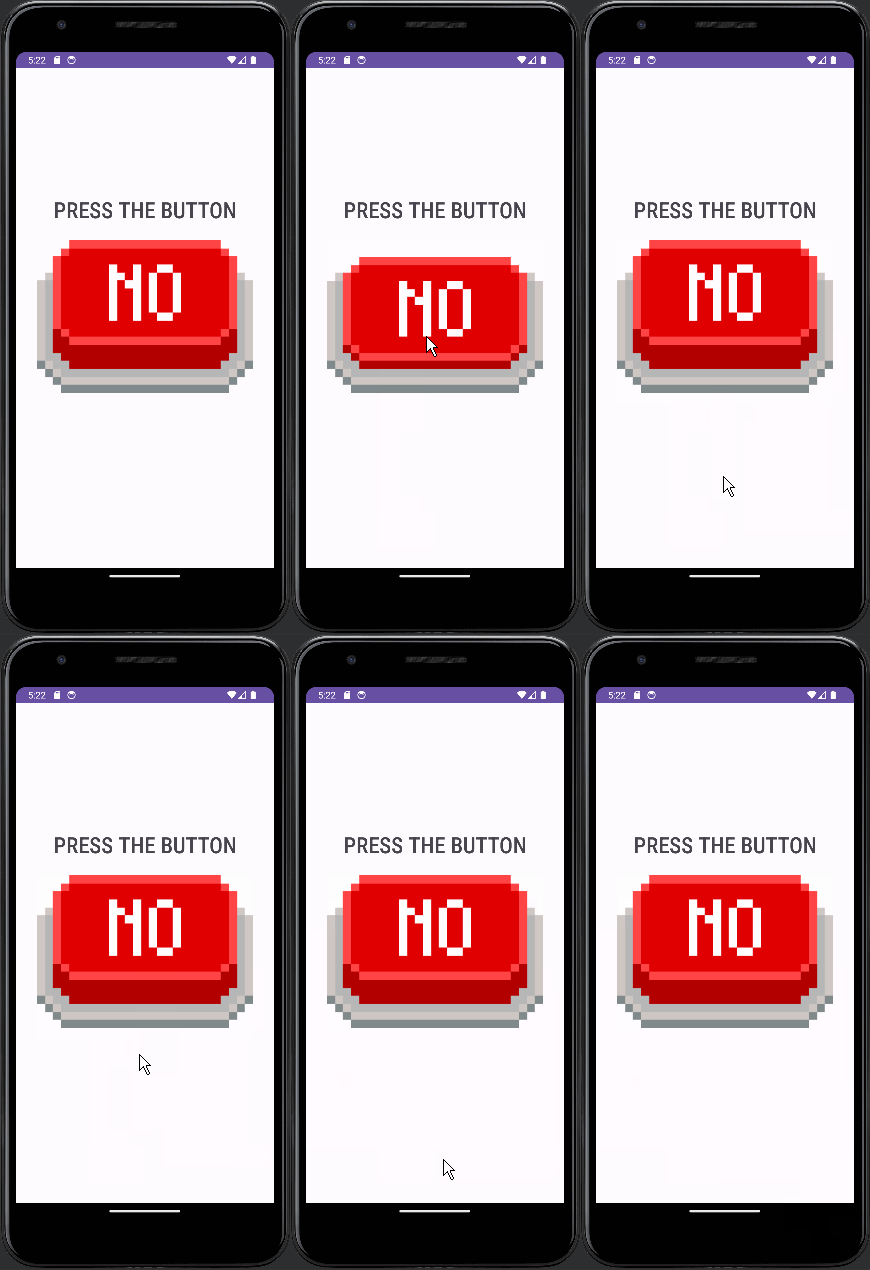
I discovered I could create custom XML that handles what image to use depending on the state of the button. This was abso-flipping-lutely perfect. All I had to do is create an XML file (or Drawable Resource File?) in the .\res\drawable directory, and specify what images I should use for whichever states, and then change the srcCompat attribute to the XML file. It sort of functions as a dynamic image if you get what I mean. Anyways, the xml file ended up looking like this:
<selector xmlns:android="http://schemas.android.com/apk/res/android">
    <item android:drawable="@drawable/btn_down" android:state_pressed="true" />
    <item android:drawable="@drawable/btn_up" />
</selector>
And the app looked like this:
ADDING SOUND!
Now the app is basically done. All that is needed is the random sound effects when the button gets pressed. So, I downloaded some “NO” sound effects, imported them into the project, created an array of the sounds, and then created a new click event listener to the button that plays a random sound. I don’t feel like going too in depth on this part so here’s the code lol:
@Override
    protected void onCreate(Bundle savedInstanceState) {
        super.onCreate(savedInstanceState);
        setContentView(R.layout.activity_main);

        ImageButton no_button = findViewById(R.id.imageButton);

        MediaPlayer no1_acc = MediaPlayer.create(this, R.raw.no1);
        MediaPlayer no2_acc = MediaPlayer.create(this, R.raw.no2);
        MediaPlayer no3_acc = MediaPlayer.create(this, R.raw.no3);
        MediaPlayer[] no_array = {no1_acc, no2_acc, no3_acc};

        no_button.setOnClickListener(new View.OnClickListener() {
            @Override
            public void onClick(View v) {
                int random = rand.nextInt(3);
                MediaPlayer random_sound = no_array[random];
                random_sound.start();
            }
        });
    }
And that’s it! That’s how I made the app.
WHAT I LEARNED
App development sucks! It uses XML which I’ve never even touched, but it does seem pretty interesting. I also got a little bit more familiar with java and obviously app development so yeah👍 I’d say this project was worth it. I can also say I’m an app developer now I guess.
Also I left out a few details about how I had to get the scaling right for differently sized devices, how I accidentally made the button stretch to the bottom of the screen (can be pressed in the white space), and how I had to use constraints and stuff in the editor to position the views or elements or whatever you want to call them. That stuff isn’t super important though.
Download the app here!

Amazing article 10/10